Effortless Local Installation of DeepSeek R1 with Zero Data Sharing
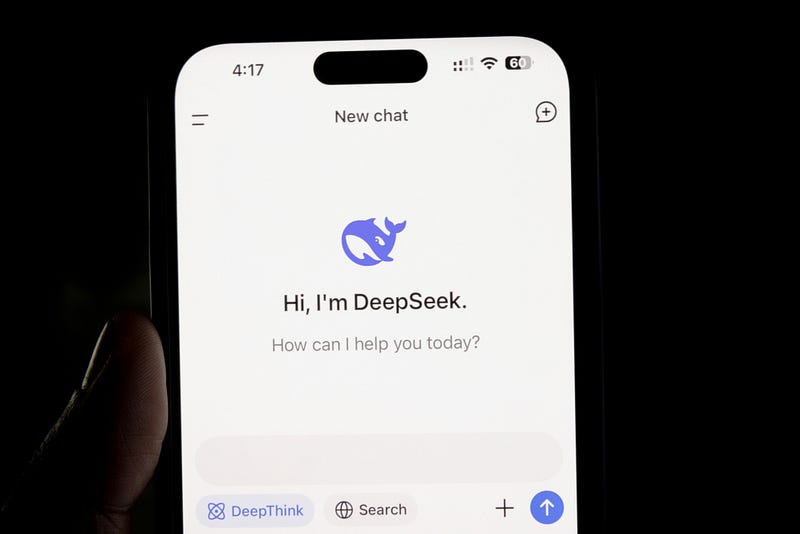
DeepSeek R1 is a powerful AI model, and running it locally on your machine ensures that your data remains private. This guide walks you through installing DeepSeek R1 using Ollama — an open-source tool for running large language models locally — and provides an optional setup for a web-based interface with Docker.
Step 1: Install Ollama
Ollama is designed to help you run large language models on your local system without relying on cloud services. To install Ollama:
- Visit the Official Website:
Go to the Ollama website and download the installer that matches your operating system. - Run the Installer:
Execute the downloaded installer and follow the on-screen instructions to complete the installation process.
Step 2: Download and Run the DeepSeek R1 Model
Once Ollama is installed, you can download and run the DeepSeek R1 model with a few simple commands.
- Open Your Terminal or Command Prompt:
Access the command-line interface on your computer. - Download and Run DeepSeek R1:
Execute the following command to download the 7B parameter version of the model:
ollama run deepseek-r1:7b
- This command initiates the download of the DeepSeek R1 model.
- If your needs or system capabilities differ, you can choose alternative model sizes (e.g., 1.5b, 14b).
- Automatic Launch:
Once the download is complete, DeepSeek R1 will automatically launch, allowing you to start interacting with the model immediately.
Important Considerations
- Download Size:
The model is approximately 4.7GB in size. Depending on your internet connection, the download may take some time. - System Compatibility:
Ensure that your system meets the necessary requirements for the selected model size. - Privacy Assurance:
Running DeepSeek R1 locally guarantees that all data remains on your computer. No data is transmitted externally, preserving your privacy.
Optional: Set Up Open WebUI for a User-Friendly Interface
If you prefer a graphical interface to interact with DeepSeek R1, you can use Open WebUI. Follow these steps to set it up using Docker:
- Install Docker:
Make sure Docker is installed on your machine. - Run the Docker Command:
Execute the following command to install and run Open WebUI:
docker run -d -p 3000:8080 --add-host=host.docker.internal:host-gateway -v open-webui:/app/backend/data --name open-webui --restart always ghcr.io/open-webui/open-webui:main
- Access the WebUI:
Open your web browser and navigate tohttp://localhost:3000to begin using DeepSeek R1 through the web interface.
Conclusion
By following these steps, you can effortlessly install DeepSeek R1 on your computer and run it locally without compromising your data privacy. Whether you choose the command-line approach with Ollama or opt for the Docker-based Open WebUI for a more intuitive experience, this setup enables you to harness the power of DeepSeek R1 while keeping your data secure.
Enjoy exploring DeepSeek R1 and unlocking its capabilities on your local system!
コメントを残す