Microsoft & GitHub’s Developer Experience Revolution: Detailed Analysis and Practical Usage Guide
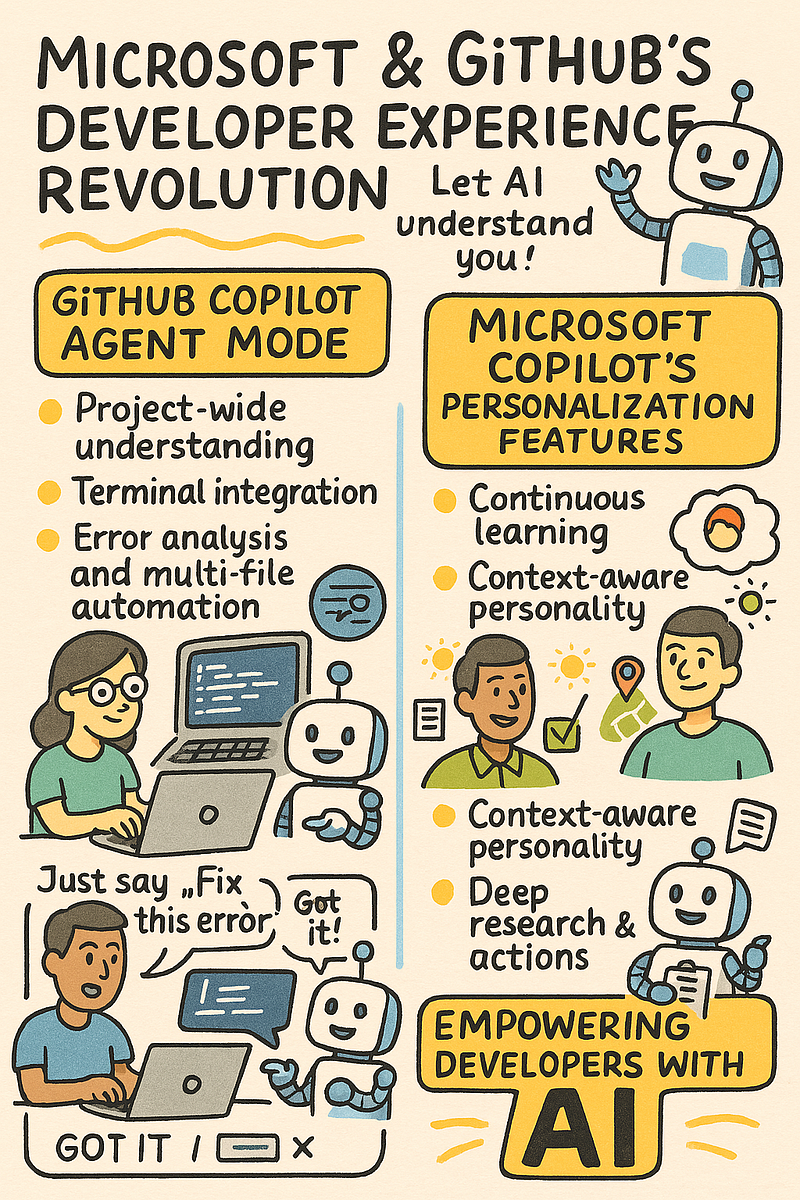
Microsoft and GitHub have made significant leaps in AI-assisted development in 2025. Here’s detailed information and practical ways to utilize Copilot’s agent mode and Microsoft Copilot’s personalization features.
GitHub Copilot Agent Mode: The New Era of Development
Detailed Feature Explanation
Project-Wide Understanding Mechanism
– Traditional Copilot was limited to single files, but the new feature can analyze up to 100,000 lines of code
– Automatically recognizes repository structure, dependencies, and architectural patterns
– Automatically adapts to existing naming conventions and styles within the codebase
– Generates highly consistent code by understanding the overall context of the project
Advanced Terminal Integration
– Predicts command line operations and suggests context-appropriate commands
– Automatically generates complex git commands, build scripts, and debugging commands
– Previews expected results before command execution
– Recognizes project-specific environment variables and setups to suggest appropriate commands
Error Analysis and Resolution Assistant
– Automatically begins analysis when runtime errors are detected
– Identifies root causes and presents context-based fix proposals
– Analyzes related stack traces and exceptions to provide debugging guidance
– For open-source library errors, automatically searches related Issues/PRs on GitHub to suggest solutions
Multi-file Task Automation
– Automatically implements changes across multiple files from high-level instructions like “add a new feature”
– When adding data models, simultaneously generates model definitions, migrations, tests, and API endpoints
– Automates refactoring tasks and applies consistent changes across all related files
– Automatically tracks cross-file dependencies and predicts the scope of impact for changes
Practical Usage Methods
Reducing Project Launch Time
“`
Practical example: Simply instructing “Create a React app with user authentication”
automatically generates the basic structure including frontend, backend, and database configuration.
Estimated time saved: 2 days → 2 hours
“`
Understanding and Modernizing Legacy Code
“`
Practical example: “Update this Java 8 code to Java 17 and refactor it to a functional programming style”
Automatically detects use of old APIs and applies the latest best practices.
Estimated time saved: 1 week → 1 day
“`
Maintaining Consistency Across Microservices
“`
Practical example: “Add this API endpoint to all microservices”
Automatically generates consistent interfaces and documentation across services.
Estimated time saved: Several days → Several hours
“`
Accelerating Bug Fix Cycles
“`
Practical example: Input production error logs into Copilot agent.
Simply instructing “Fix this error” identifies the root cause and automatically generates a fix PR.
Fix time: Hours → Minutes
“`
Microsoft Copilot’s Personalization Features: Evolution of AI Companions
Detailed Feature Explanation
Continuous Learning Algorithm
– Learns not only from conversation history but from all operations including document editing patterns, schedule management, and email responses
– Learns user-specific terminology, industry-specific language, and communication styles
– Feedback loop function: Tracks whether suggestions were adopted to improve accuracy
– Cross-application learning using Microsoft Graph API (across Teams, Outlook, SharePoint, etc.)
Context-Aware Personality
– Automatically switches between different personalities (formal/casual) based on user role and situation
– Optimizes suggestions based on time of day and location (summary information in the morning, reflection in the evening, etc.)
– Detects user mood and workload to adjust support level (minimal intervention during focus time, etc.)
– Fine-grained control of personal information usage based on privacy settings
Deep Research Function Details
– Automatically executes multi-step information gathering and analysis
– Collects and integrates data from multiple sources (web, internal documents, specialized databases)
– Automatically evaluates information reliability and detects contradictions
– Generates step-by-step explanations tailored to the user’s level of understanding, even for complex topics
– Enterprise version can also connect with internal documents and knowledge bases
Actions Execution Process
– Task automation through Natural Language Programming
– Integrates with Microsoft 365 apps, Teams apps, and approved third-party apps
– Built-in user approval workflow, with confirmation processes always in place for important actions
– Creating and executing custom workflows through integration with Power platform
Practical Usage Methods
Personalized Information Dashboard
“`
Practical example: “Create a summary of today’s important emails, meetings, news, and tasks every morning at 8”
Result: Automatically generates daily briefings organized by relevance, learning from individual priorities
Time saved: 30 minutes daily
“`
Industry-Specific Research Assistant
“`
Practical example: “Create a detailed report on the latest trends in medical AI, focusing on relevance to our product line”
Result: Generates unique analysis reports combining general web searches with internal company data
Time saved: 3 days → 3 hours
“`
Meeting Optimization Assistant
“`
Practical example: “Organize the content for the upcoming sales strategy meeting and prepare necessary materials”
Result: Learns from past meeting notes to automatically suggest expected agenda items, materials to prepare, and pre-meeting checks with key persons
Time saved: 2 hours → 20 minutes
“`
Customer Response Personalization
“`
Practical example: “Analyze the history of interactions with this client and tell me what points to include in the next proposal”
Result: Extracts customer priorities and concerns from past emails, meeting notes, and proposals to suggest personalized proposal approaches
Conversion rate improvement: 15% increase
“`
Work-Life Balance Management
“`
Practical example: “Look at my work style and suggest ways to improve my work-life balance”
Result: Analyzes work patterns, meeting times, and email response times to suggest specific improvements (e.g., limiting meetings during certain hours)
Satisfaction improvement: 34% improvement reported by users
“`
Implementation Roadmap for Technical Professionals
Phase 1: Basic Implementation (1 week)
1. Enable Copilot agent mode in VS Code
2. Run codebase analysis on existing projects
3. Customize terminal command suggestion features
4. Train the agent on project-specific coding conventions
Phase 2: Workflow Integration (2–3 weeks)
1. Establish automation patterns for daily development tasks
2. Configure integration with CI pipeline
3. Create prompt templates for consistent practices across the team
4. Integrate error response protocols with Copilot
Phase 3: Advanced Usage (1 month+)
1. Automate tasks across multiple repositories/projects
2. Develop extended functions through custom plugin integration
3. Automate project management through integration with Microsoft Copilot
4. Integrate with team-wide knowledge management systems
Implementation Considerations and Optimization Strategies
Security Considerations
– Real-time vulnerability scanning of generated code through integration with GitHub Advanced Security
– Guard rail settings to reduce the risk of accidental exposure of sensitive information and API keys
– Policy settings to restrict Copilot interactions for specific sensitive projects
Performance Optimization
– Increase VS Code memory allocation (recommended: minimum 8GB)
– Enable incremental analysis mode for large projects
– Register frequently used commands and patterns as shortcuts
Team Implementation Best Practices
– Implement phased training programs (basic → intermediate → advanced features)
– Build and share team-specific prompt libraries
– Share insights through weekly “AI pair programming” sessions
– Establish KPIs for measuring effectiveness (time saved, bug reduction rate, code quality metrics)
Conclusion
GitHub Copilot’s agent mode and Microsoft Copilot’s personalization features have the potential to dramatically improve developer productivity and creativity. They have evolved from simple code completion tools to AI partners that intelligently support the entire development process.
To maximize the benefits of these tools, strategic implementation and continuous optimization tailored to your workflow are essential, rather than simply enabling the features. Use the practical examples and implementation steps introduced here to further evolve your development environment.
While AI continues to evolve daily, remember that true innovation comes from combining human creativity with AI efficiency.
コメントを残す