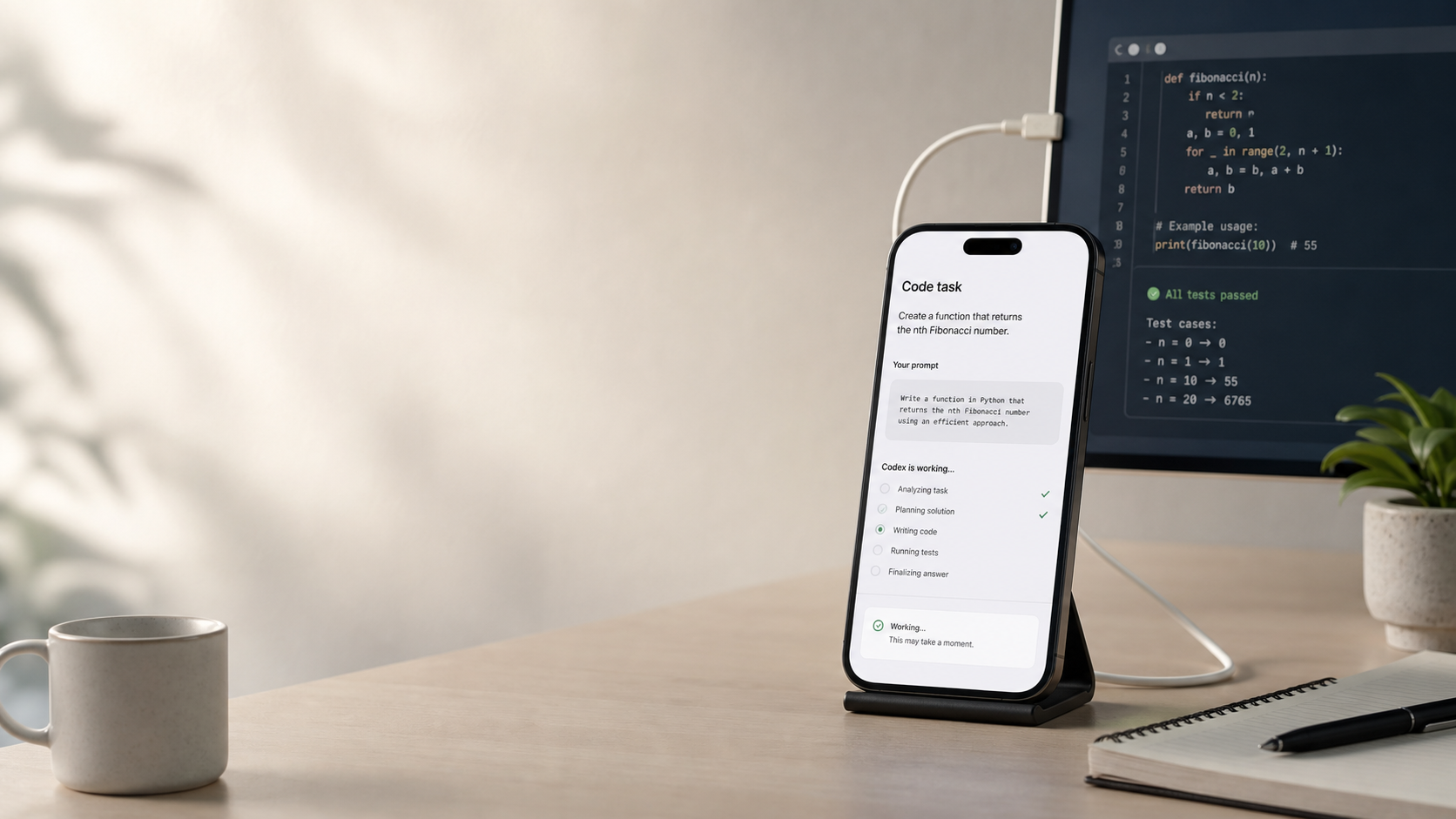
OpenAI's newest Codex update is exciting, but it is also easy to misunderstand.
It is not a separate "Codex mobile app." The important change is that Codex is now available in preview inside the ChatGPT mobile app.
But the practical lesson is not "now you can code from a phone."
The practical lesson is this: Codex becomes useful when you give it a concrete task, let it work on a real computer, and supervise the important decisions.
That is true whether mobile support works for your setup today or not.
I wanted to try the mobile workflow immediately. I use a Windows machine, though, and the launch experience was still Mac-first for the Codex desktop connection flow. So for me, the honest result was: not yet.
That was disappointing.
But it also clarified the real point. Before mobile supervision matters, you need a task that Codex can actually complete. The first win is not "I controlled coding from my phone." The first win is "I gave Codex a small job on my computer, and it finished it safely."
OpenAI announced the change on May 14, 2026 in Work with Codex from anywhere. The feature is also listed in OpenAI's ChatGPT release notes for May 14, 2026.
- Start With a Small Win
- What Actually Changed
- The Best Use Case Is Supervision, Not Phone Coding
- What Did Not Change
- A Practical Workflow
- Practical Codex Prompts You Can Use
- Why This Is Bigger Than It Looks
- Who Should Try It
- Who Should Skip It for Now
- Q&A: Practical Questions
- Is there a separate Codex mobile app?
- Can Codex keep working while I use the phone?
- Does mobile Codex replace the desktop Codex app?
- Does it work with Windows?
- Do I need a computer for mobile Codex?
- Was it Mac-only at launch?
- What should Windows users do now?
- What tasks should I avoid approving from a phone?
- Bottom Line
- Work With Me
Start With a Small Win
If you want to feel Codex become useful, do not start with a huge app rebuild.
Start with a task where success is visible:
- build a tiny HTML/CSS/JavaScript profile page
- build a click counter that changes on screen
- build a simple notes page in the browser
- write a Python fortune program
- write a Python task picker
- then move into article checks, bug fixes, and reviews
These tasks work because the result is visible. A page opens. A button changes a number. A Python script prints a result. You do not need a WordPress site, a deployment flow, or a full app idea to feel the first win.
That is the "I did it" moment readers should aim for first.
Mobile access is valuable later because it lets you keep those bounded tasks moving when Codex pauses for a decision.
What Actually Changed
The mobile experience lets you keep working with Codex threads from the ChatGPT app on iOS and Android.
In practical terms, that means you can:
- start new Codex work from your phone
- review output while Codex continues running elsewhere
- answer follow-up questions from the agent
- steer the execution if the task needs a new direction
- approve next steps when approval is required
- inspect terminal output, changes, test results, and screenshots
This matters because coding agents are rarely "fire and forget." The valuable runs are usually interactive. You give the task, the agent reads the codebase, it finds a constraint, it asks a question or needs an approval, then it continues.
If you miss that middle step, the agent stalls. If you catch it quickly, the task keeps moving.
Mobile Codex is designed for that middle step.
The Best Use Case Is Supervision, Not Phone Coding
Writing production code from a phone keyboard is still a bad default. The screen is small, the input is slow, and reviewing subtle code changes is harder than on a desktop.
But supervision is different.
A phone is good enough for short decisions:
- "Yes, run the test suite."
- "Use the existing component, not a new one."
- "Keep the draft unpublished."
- "Do not touch the billing module."
- "The screenshot looks wrong on mobile; fix the layout."
That kind of lightweight steering is exactly where mobile access becomes useful. You are not replacing the workstation. You are removing the dead time between Codex asking for direction and you seeing the request.
For solo builders, this is the difference between "I will check the task later" and "the task kept moving while I was away from my desk."
What Did Not Change
The update does not mean every Codex workflow is suddenly mobile-first.
There are still important limits:
- The work still runs on a connected host or remote environment.
- Serious code review still benefits from a larger screen.
- Local setup, credentials, repo state, and tests still matter.
- A mobile approval can still approve the wrong thing if the task was poorly scoped.
- Windows mobile host connection support was described as coming soon, while macOS connection support was available at launch.
That last point matters for many developers. If your main Codex environment is Windows, you should treat the mobile feature as something to test carefully rather than assume full parity immediately.
That was my own result too. I wanted to try the mobile workflow, but my main machine is Windows. At launch, the practical setup was still Mac-first for connecting the Codex desktop app, so I could not use the feature the way I hoped.
That is disappointing, but not a reason to dismiss the idea. The direction is still right. If Windows support arrives later, the same workflow becomes useful immediately: start real work on the PC, use the phone only to supervise, then return to the PC for final review.
A Practical Workflow
Here is the workflow I would actually use.
First, start Codex from the desktop with a narrow task. The prompt should define the repo, the target files, the acceptance criteria, and what not to touch.
Second, let Codex do the slow work: reading files, tracing behavior, running tests, collecting screenshots, or preparing a patch.
Third, use mobile only for the decision points. If Codex asks whether it should run a command, proceed with a scoped test, or choose between two approaches, answer from the phone.
Fourth, save final review for the desktop. A mobile screen is fine for "keep going." It is not ideal for "ship this patch to production."
The strongest pattern is:
Desktop for setup and final review. Mobile for supervision and momentum.
That is a simple rule, but it prevents the main mistake: treating the phone as the new development environment.
Practical Codex Prompts You Can Use
Even before the mobile workflow is available on every desktop environment, the important habit is the same: give Codex a narrow task, clear boundaries, and a concrete finish line.
Here are practical beginner-friendly prompts I would actually use with Codex.
1. Tiny HTML/CSS/JavaScript Page
Create a small personal profile page using only HTML, CSS, and JavaScript.

Files to create:
- index.html
- styles.css
- app.js

Features:
- Show a name, short bio, and a list of favorite things.
- Add a button that displays a random encouraging message.
- Make the page readable on mobile and desktop.

Constraints:
- Do not use any external libraries.
- Keep the code beginner-friendly.
- Explain what each file does.
- Tell me how to open it in the browser.
2. Click Counter Mini App
Create a small click counter using HTML, CSS, and JavaScript.

Files to create:
- index.html
- styles.css
- app.js

Features:
- Show the current count.
- Add a "+1" button.
- Add a reset button.
- When the count reaches 10, show a small success message.

Please:
- Keep it simple enough for a beginner to read.
- Explain how HTML, CSS, and JavaScript each contribute.
- Tell me exactly how to run it locally.
3. Python Fortune Program
Create a beginner-friendly Python fortune program.

File to create:
- omikuji.py

Features:
- When I run it, it randomly shows one result: Great luck, Good luck, Small luck, or Try again.
- Show a short message for each result.
- Ask whether I want to draw again.

Please:
- Add short comments for beginners.
- Explain how the random choice works.
- Give me the PowerShell command to run it.
I published this exact beginner example here:
Python Omikuji Example on GitHub
I also added a playable Web UI version here:
Play the Omikuji Pocket Web UI
That matters because the win is not just "Codex wrote code." The win is: code was created, run locally, committed, and published as a real GitHub repository.
4. Python Task Picker
Create a small Python task picker.

File to create:
- task_picker.py

Features:
- Store a list of small tasks in the code.
- Pick one task randomly when the program runs.
- Make it easy for me to add more tasks later.

Please:
- Keep it beginner-friendly.
- Explain which line I should edit to add tasks.
- Give me the PowerShell command to run it.
5. After That: Safe Bug Fix Prompt
You are working in this repository. Fix the bug described below with the smallest safe change.

Bug:
[Describe the broken behavior.]

Constraints:
- Read the relevant files before editing.
- Reuse existing patterns in the codebase.
- Do not refactor unrelated code.
- Run the most relevant test or build command.
- Summarize changed files and any remaining risk.
The key is not clever wording. The key is reducing ambiguity. A phone is a poor place to untangle a vague task, but it is a good place to answer a clear question from a well-scoped Codex run.
Why This Is Bigger Than It Looks
The update points toward a broader change in developer tools.
Traditional coding assistants sit inside the editor. Agentic coding tools run longer, touch more files, and often need mid-task decisions. As that work becomes more asynchronous, the interface needs to follow the human, not just the IDE.
This is why the mobile layer matters. It turns Codex from a tool you check when you return to your desk into a teammate-like process you can keep warm in the background.
There is a behavioral reason this matters too. People do not abandon agent runs only because the agent is weak. They abandon them because the feedback loop is inconvenient. A stalled approval, a missed question, or a delayed screenshot review can make the whole run feel like more work than doing it manually.
Mobile access reduces that friction.
Who Should Try It
This is most useful if you already run Codex on real tasks:
- content-site maintenance
- frontend screenshot fixes
- test repair
- documentation updates
- small refactors
- issue triage
- automation scripts
- WordPress or static-site publishing workflows
It is less useful if you only use Codex for one-shot code snippets. The more your work involves long-running tasks, approvals, and iterative review, the more valuable mobile access becomes.
Who Should Skip It for Now
Skip the hype if your current problem is unclear prompts, weak tests, or messy repo setup.
Mobile access does not fix those. In fact, it can make them worse because approving work from a phone is easier than thinking deeply about whether the task was scoped correctly.
Before relying on mobile Codex, make sure your project has:
- clear local setup instructions
- reliable test commands
- small task boundaries
- a habit of reviewing diffs before publishing
- an
AGENTS.mdor equivalent instruction file for recurring preferences
The phone should accelerate a working system, not compensate for a vague one.
Q&A: Practical Questions
Is there a separate Codex mobile app?
No. Based on OpenAI's May 14, 2026 announcement, Codex is available in preview inside the ChatGPT mobile app on iOS and Android.
Can Codex keep working while I use the phone?
Yes. The mobile experience is designed so you can stay connected while Codex continues working on a laptop, devbox, or remote environment.
Does mobile Codex replace the desktop Codex app?
No. The best use is supervision: reviewing outputs, approving steps, and redirecting tasks. Setup and final code review still belong on a desktop for most serious work.
Does it work with Windows?
OpenAI's announcement said Windows support for phone connection was coming soon. If your main Codex host is Windows, verify your current app behavior before depending on it.
Do I need a computer for mobile Codex?
Yes. The phone is not the full development environment. The useful model is that Codex keeps working on a connected computer, devbox, or remote environment while the phone gives you a way to supervise the run.
Was it Mac-only at launch?
For the desktop app connection flow, macOS support was available first and Windows support was described as coming soon. If you are on Windows, the realistic move is to keep using Codex on the PC for now and wait for parity before building a mobile-dependent workflow.
What should Windows users do now?
Use Codex where it already works: narrow repo tasks, article publishing, bug fixes, test repair, and review. Build the prompt discipline now. When mobile supervision becomes available for your setup, the workflow will already be ready.
What tasks should I avoid approving from a phone?
Avoid approving destructive file operations, production publishing, dependency installs, credential changes, database migrations, and broad refactors unless you have reviewed the details carefully. Mobile is best for small steering decisions, not blind trust.
Bottom Line
Codex in the ChatGPT mobile app is not exciting because it lets you write code on a phone. That is the wrong frame.
It is exciting because coding agents are becoming asynchronous workers, and asynchronous workers need fast supervision. The phone becomes the approval layer, the steering wheel, and the status screen.
For builders, the practical question is simple: what tasks can you safely hand to Codex, then supervise in short bursts?
If you can answer that, this update is not just a convenience feature. It is a real workflow upgrade.
Work With Me
If you build coding agents, developer workflows, or AI tools for technical operators and want practical coverage grounded in real usage, see the Sponsor / Work With Me page.
You can also start with Start Here or review the Affiliate Disclosure page.

コメント