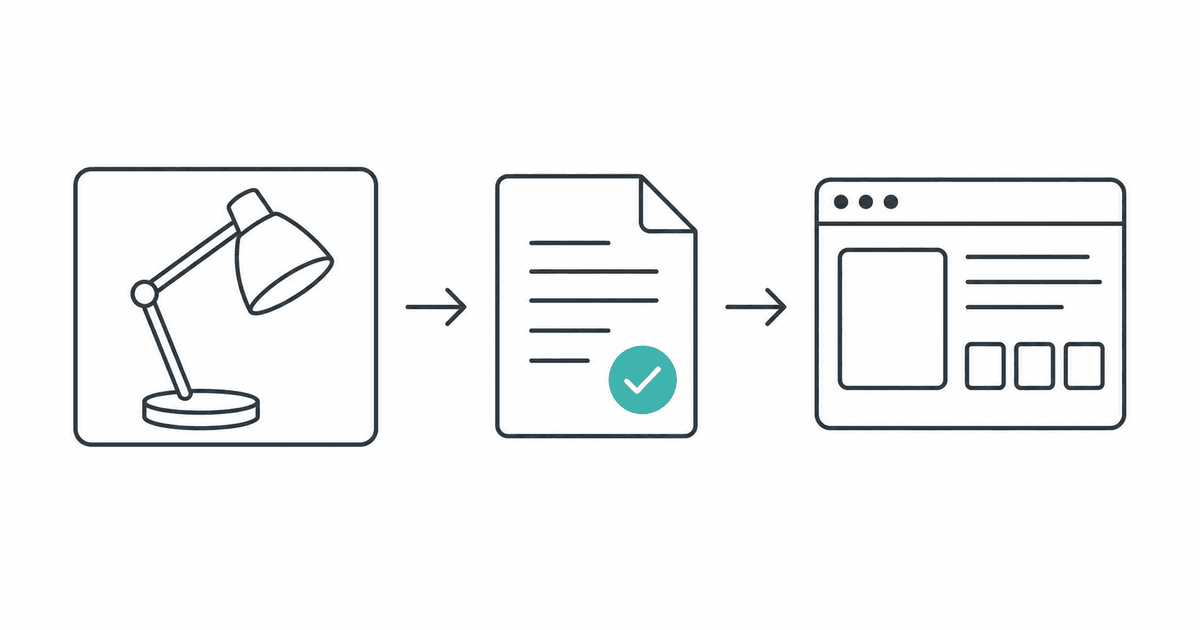
GPT-6.1 Terra is worth considering when a task starts with a screenshot, a product photo, or a document that needs a clearer explanation. OpenAI positions it as a fast, efficient model for visual reasoning, computer use, and natural writing. This guide explains how to access it, gives you three practical workflows, and shows how to decide whether it earns a place in your work. OpenAI model guide
The workflows and prompts below are editorial proposals based on official documentation. They are not a hands-on benchmark, and this article does not claim a measured improvement in speed, accuracy, or productivity. Product details were checked on October 30, 2026; start by confirming what is available in your account.
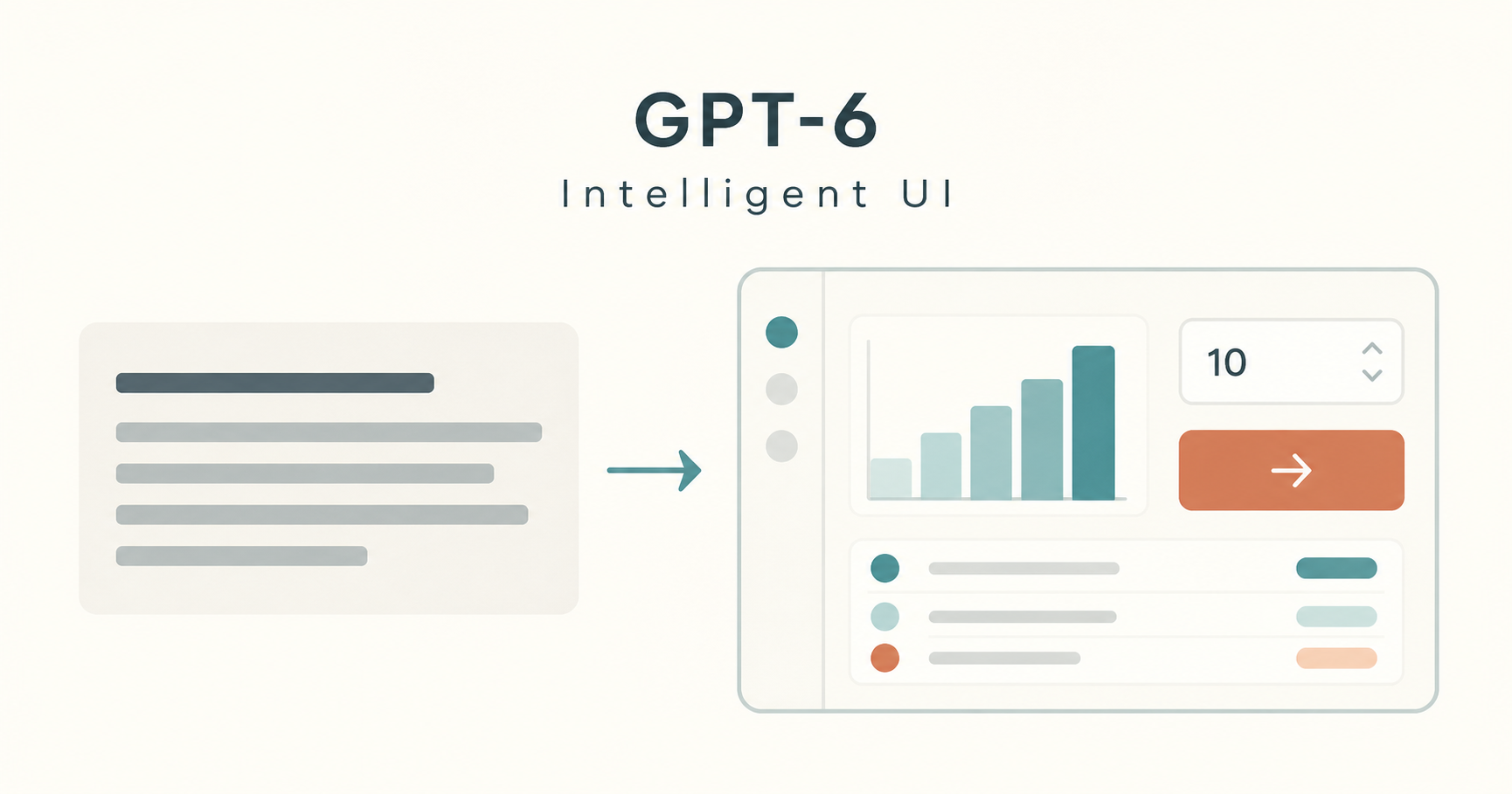
Start with a task you can check
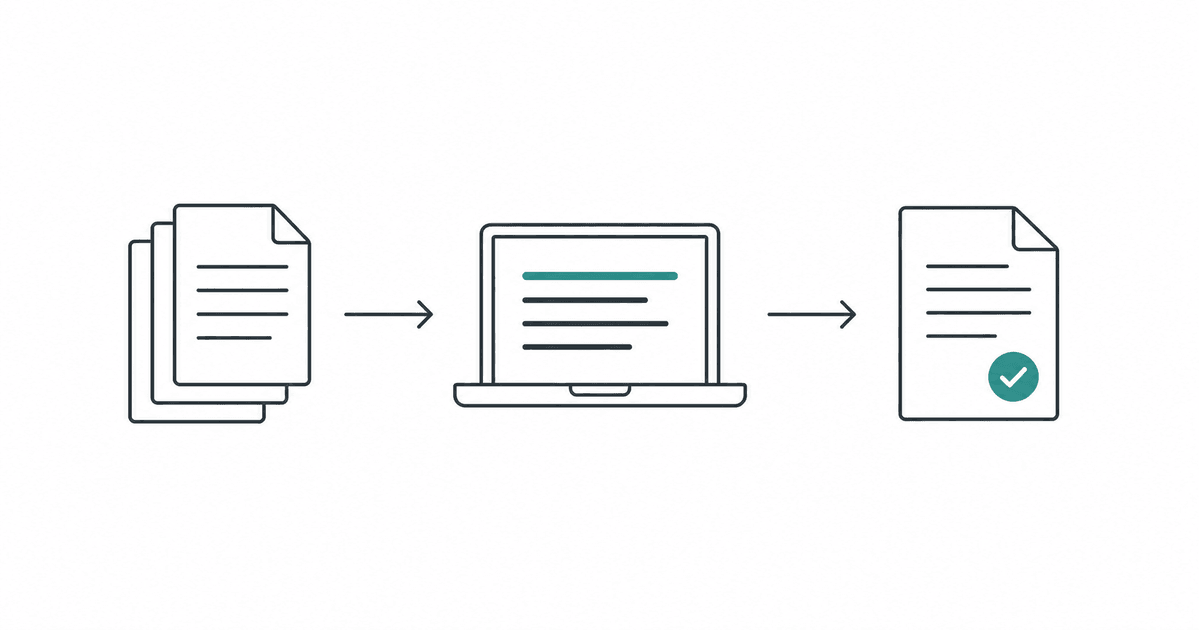
A reviewable workflow
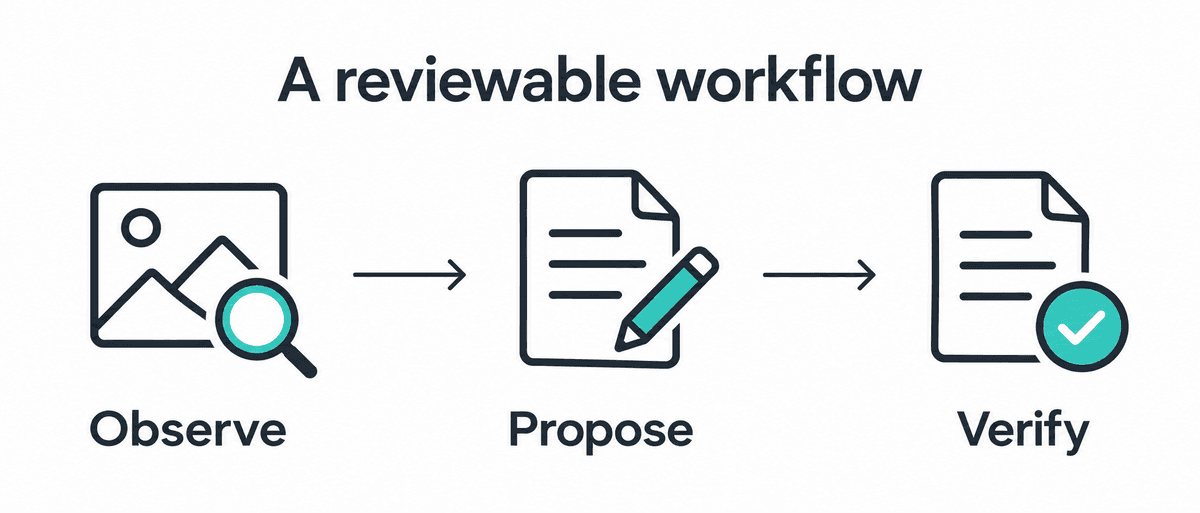
The workflow is a suggested way to organize a task, not a measured performance result.
Terra makes most sense as a candidate for work where visual evidence needs to become a useful action or explanation. OpenAI's model guidance places Terra alongside Astra for demanding work, Sol for repeated complex work, and Luna for focused, repeatable tasks. Those descriptions help you choose a starting point; your own examples should decide what you keep. Models in ChatGPT Work and Codex
OpenAI's October 26–30 release notes list Terra for ChatGPT Work and Codex on Plus, Pro, Business, Enterprise, and Edu plans. They explain that you can select it through Advanced in the ChatGPT desktop app or ChatGPT Work on the web, with Work also supporting mobile. Terra is not available in Chat, Enterprise access depends on administrator controls, and UAE inference residency is not supported. Official release notes
If you use Codex CLI, the model documentation requires version 0.159.0 or later and gives this command to select Terra:
codex -m gpt-6.1-terra
The model picker and tool access are separate things. Confirm that Terra appears in your client, then confirm that the task's browser or desktop tools are available before expecting it to operate an application. If you are new to that environment, our practical Codex guide provides broader context. Official model selection instructions
For local desktop work, the Computer Use documentation describes plugin setup and app permissions on Windows and macOS in supported regions. On Windows, it uses the active desktop, so keep the target app visible and expect it to use foreground input. A screenshot review is therefore a useful first task before you introduce live editing. Computer Use setup
Try three bounded workflows
Three useful starting points
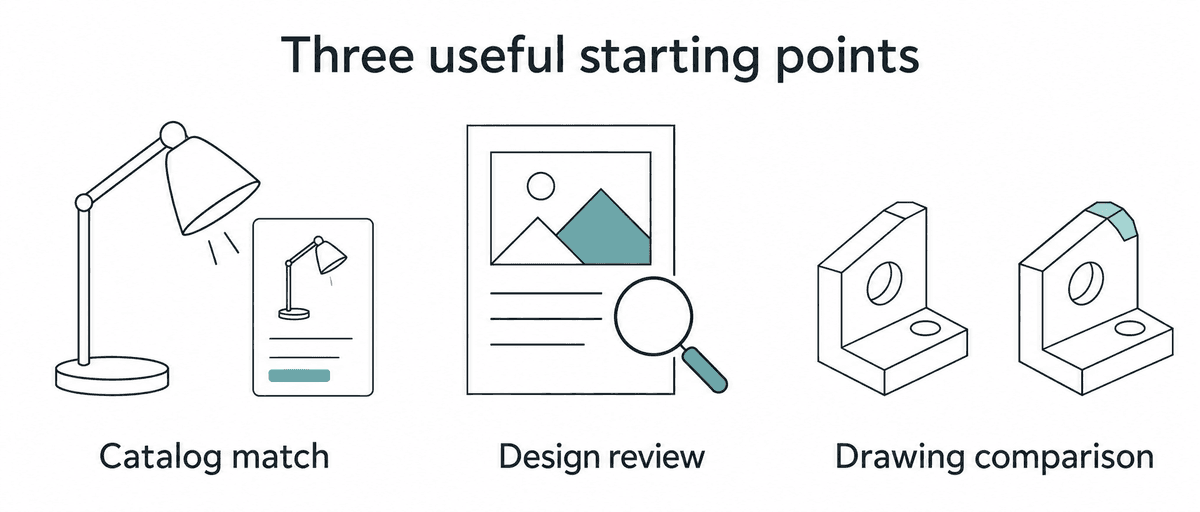
Each example starts with source material and ends with something a person can inspect.
Match product photos to a catalog
Give Terra a small photo set and a catalog with stable product identifiers. Ask for candidate matches, visible supporting details, and unresolved differences. Reserve an explicit outcome for “no reliable match,” so the task does not force every photo into the catalog.
Compare these five supplier photos with the attached catalog.
Use only the supplied materials.

For each photo, return the candidate product ID, visible evidence,
conflicting details, and whether a person needs to review it.
Use “no reliable match” when the evidence is insufficient.
Do not invent a SKU, specification, price, or stock level.
Produce a review table without changing the live catalog.
Check a distinctive detail yourself before accepting a proposed match. Two products can share a silhouette while differing in a connector, label, or included accessory. Once you have a reviewed table, it becomes a concrete input for a separate catalog update.
Review a page or campaign asset
Provide the asset, its intended dimensions, and the message the audience should notice first. Ask Terra to point to visible problems and propose specific edits. A short findings table is easier to act on than an unrestricted request to “make the design better.”
Review these desktop and mobile screenshots against this brief.
Check cropped text, inconsistent labels, and overlapping elements.

For each finding, name the screenshot and visible location,
describe the evidence, and propose one specific correction.
Separate visible findings from items that require a live-page test.
Return the five most useful findings, then stop for review.
A screenshot can show a cut-off button label, but it cannot establish whether the button works. Test that behavior on the page and revisit the same screen after any edit. Our AI-assisted landing-page build log offers a related example of turning a visual goal into a site artifact.
Compare drawing revisions and explain the changes
Give both versions clear names and ask for changes tied to visible labels. Require unreadable dimensions to remain unresolved instead of being reconstructed from context. Use the resulting change list to guide a review of the original files.
Compare drawing A with drawing B.
List visible differences in labels, dimensions, and component positions.
For every difference, identify the relevant area in both drawings.

Write “unreadable” for text or numbers you cannot read reliably.
Do not infer hidden measurements or certify the design.
Finish with a plain-language change note for the project team.
Image analysis can make mistakes with small or rotated text, counts, and precise spatial relationships. OpenAI documents these limitations, so inspect the original resolution and verify consequential numbers against the source. Clearer writing helps communicate a finding, but it does not establish that the finding is correct. Images and vision limitations
These examples use an outcome-first prompt: name the deliverable, constrain the evidence, and define how uncertainty should appear. Our outcome-first prompting guide develops that general approach. Use the prompts here as starting points, then make the acceptance criteria specific to your task.
Separate API specifications from your workflow cost
The API model ID is gpt-6.1-terra, with a 1,050,000-token context window and up to 128,000 output tokens. It accepts text and images and returns text; direct audio and video modalities are not supported. These API specifications do not establish the effective context or usage limits of a particular Work or Codex account. Terra API specifications
The API supports none, low, medium, high, xhigh, and max reasoning effort. OpenAI recommends starting Terra at medium and increasing effort when the quality gain justifies the extra time and tokens. Tool calling requires the Responses API; a basic text or image request alone does not provide a running desktop automation system. GPT-6 configuration guidance
Standard text-token prices are quoted in US dollars per 1 million tokens:
| Token category | Standard price |
|---|---|
| Input | $1.00 |
| Cached input | $0.05 |
| Output | $5.00 |
These are API rates, not a quotation for subscription usage. For an illustrative request with 10,000 uncached text input tokens and 2,000 total billable output tokens, the base arithmetic is (10,000 / 1,000,000 × $1) + (2,000 / 1,000,000 × $5) = $0.02. This is a calculated example, not an observed bill; it excludes images, tools, cache writes, and other applicable adjustments. Official API pricing
Long inputs also change the calculation. The model page states that requests exceeding 272,000 input tokens incur double input and cache rates and 1.5 times output rates for the full request; it lists Fast mode at twice Standard pricing. Check the current tariff and the request's actual usage before estimating a recurring workload. Terra pricing conditions
For a custom computer-use integration, your application must execute actions, return screenshots, and maintain the workflow state. Plan for result checks and a stopping condition as part of that integration. Start by producing a reviewed proposal, then add application changes once you can reliably evaluate the output. Computer use integration guide
Run a small trial before switching
Run a small trial
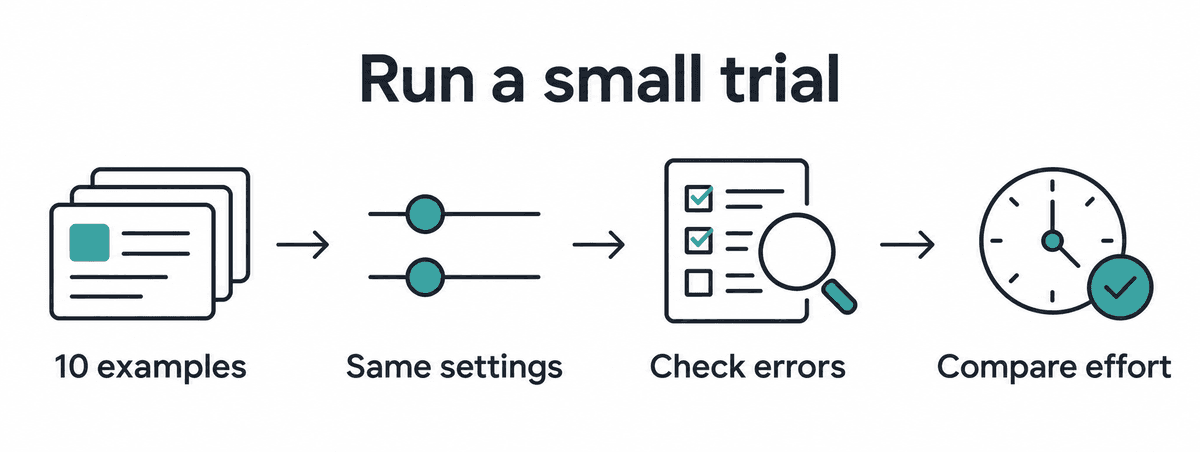
This is a suggested evaluation plan. The article reports no benchmark results.
Choose 10 representative examples from work you already understand. Include an easy case, an ambiguous case, and a case where “cannot determine” is the correct answer. Write the expected result before asking the model, so a fluent answer cannot quietly redefine success.
Run your current model and Terra on the same files, instructions, tools, and reasoning effort wherever both support it. Record quality and the human work needed to reach an acceptable result. The table below is a blank scorecard you can reuse, with no scores implied.
| Measure | What to record |
|---|---|
| Source fidelity | Count unsupported claims and incorrectly read details. |
| Useful uncertainty | Record when ambiguous evidence was flagged or missed. |
| Task completion | Check whether the requested artifact meets your criteria. |
| Human effort | Time the review, corrections, and repeated attempts. |
| Resource use | Record elapsed time and actual usage or billed cost. |
For a page review, success might mean locating three known layout defects without inventing additional ones. For catalog matching, it might mean making the correct match and declining an ambiguous photo. Define those criteria around your real task rather than treating this small trial as a general ranking.
Keep Terra where the evidence shows a useful result with acceptable review effort. Investigate recurring mistakes before expanding the task, and retain your existing process where it works better. A model switch becomes easier to justify when it solves a named problem in your own material.
Common questions
Does selecting Terra enable every app integration?
Selecting a model does not complete browser or desktop setup. OpenAI documents separate tool requirements and permissions, with availability varying by client and workspace. Confirm the relevant integration before assigning a task that depends on it. Browser documentation, Computer Use documentation
Can Terra generate images directly?
Terra's model page lists image input and text output. It also lists support for an image-generation tool through the Responses API, which is a separate capability from the model's direct output modality. For visual production, confirm which image tool your application makes available. Terra modalities and tools
Is Terra better than Sol or Astra?
This article does not establish a universal winner. OpenAI recommends different models for different kinds of work, while your inputs, acceptance criteria, and review time determine practical fit. Use the small trial above to make that decision for one workflow. Official model guidance
Choose one of the three workflows and prepare a small, checkable input set today. Ask for a concrete artifact, inspect it against the sources, and record the correction effort before expanding the scope. Continue with the practical Codex guide if you need the surrounding workflow, or the prompting guide to sharpen the instructions.
Choose another model guide or browse the AI Models collection.
コメント